Styleguide
This page shows all the style elements that define the design of this site. You are now reading an intro paragraph: it opens an article or page, is slightly larger than the running text and has a small green stroke as an accent.
Colour
One warm paper colour, three shades of ink and one green accent. The green is reserved for what you can click or what lights up: links, note numbers and the note under your mouse.
Dark mode follows the setting of your system. You can also choose it yourself, here or at the bottom of the menu. Your choice is remembered.
- PaperBackground
--paper#f7f5f1 / #1c1d1b - Paper, raisedMenu, keys, windows
--paper-raised#fdfcfa / #232421 - InkText and headings
--ink#1d1c1a / #e9e6e0 - Ink 2Intro, quotes, boxes
--ink-2#4a4741 / #bfbab1 - Ink 3Metadata, notes, captions
--ink-3#736e65 / #969186 - LineDividers
--rule#e3dfd6 / #33342f - Line, strongMargin line, table header
--rule-strong#cbc5b9 / #4a4b45 - AccentLinks, note numbers
--accent#2f6f4f / #8bc6a1 - Accent, lightHighlights, information box
--accent-tint#e1ebe3 / #26352b - CodeBackground of code
--code-bg#eeebe4 / #272824
Typefaces
Two families that clearly differ from each other. The serif is for everything you read, the sans-serif for everything you use: menu, metadata, labels and tables. Both are hosted locally via Fontsource, without requests to Google.
The quick brown fox jumps over the lazy dog
Newsreader by Production Type. Running text, headings and notes. Variable in weight (200 to 800) and optical size, so small text automatically becomes slightly sturdier.
The quick brown fox jumps over the lazy dog
Cabin by Impallari Type, a humanist sans-serif in the line of Johnston and Gill. Menu, metadata, labels and tables.
The quick brown fox jumps over the lazy dog
System font for code: SF Mono, Cascadia Mono, Menlo or Consolas, depending on your device.
The iI1l test
Hopefully these letterforms differ enough, so that you don’t mistake a 1 for an l, or an i and an I for an l.
- iI1l 0ONewsreader
- iI1l 0OCabin
- iI1l 0OMono
Headings
Headings are set in Newsreader. The page title is the largest and the lightest; the smaller the heading, the heavier, so that every heading stays equally clear.
Title of a piece
Page title, .post-title. Newsreader 400, from 2.4 to 4 rem, scales with the screen.
Heading 1
Only use an h1 in the text on pages without a page title. In a regular piece the title is the h1 and the structure starts at h2.
h1 in the text. Newsreader 450, 2.1 times the text size.
Heading 2
An h2 opens a new chapter. There is a fair amount of space above it, so that while scrolling you see where a new part begins.
h2. Newsreader 560, 1.6 times the text size. Appears in the margin line.
Heading 3
An h3 divides a chapter. If it is directly below an h2, the space between them becomes smaller.
h3. Newsreader 600, 1.22 times the text size. Appears indented in the margin line.
Heading 4
An h4 is for a short subheading, for example above a list or an example. It does not appear in the margin line.
h4. Newsreader 650, the same size as the text.
Paragraphs
This is a regular paragraph. The lines are ragged on the right: justifying quickly creates gaps between words on the web. Long words are hyphenated according to the language of the page, so that the right edge still stays calm.
Running text. Newsreader 400, 18 to 20 pixels, line height 1.62. Hyphenation via lang="en".
Intro paragraph
The paragraph at the top of this page. Give a p the class lead and it becomes larger and lighter, with a stroke in the accent colour below it.
Line length
A line reads most comfortably at 45 to 75 characters; 66 is considered ideal.123
I take that into account in the max-width of the text column. It is set in --measure to 40 rem: about seventy characters in this typeface.
Wide
A block with the class bleed runs on wide screens all the way up to and including the notes column. Useful for images, tables and the odd passage that deserves more room.4
This is what a wide paragraph looks like. Use it sparingly: a line of well over a hundred characters reads noticeably heavier, and that is exactly why the regular text column is narrower. For a short, special passage it can work. For regular text it does not.
Divider
An hr becomes an Asterism. I sometimes like old-fashioned habits and I'd like to preserve this dinkus.
Text formatting
Italic
The element i is for words in a different voice, mood or language, such as technical terms or an expression from another language.
The quick brown fox jumps over the lazy dog.
Emphasis
With em you place stress: something you would pronounce differently. If italics are only a stylistic choice, use i.
You really must try that new twelve-year-old Aultmore!
Strong
With strong you indicate that something is important. For bold without that meaning there is b.
Do not put nails in the power socket.
Links
Butterscotch squares that do things right. A link is green with a thin, light underline. Point at it and the line becomes solid.
In secondary text, such as sources, notes and the footer, a link keeps the colour of the text around it, with the same thin underline, and turns green when you point at it. That way it doesn’t compete with the text it belongs to. You can see it in the source of the quote below.
Abbreviations
Abbreviations such as HTML get an abbr, with a title for the full name. The dotted line shows that there is an explanation; point at the abbreviation to read it.
Titles of works
Titles of books, films and articles go in a cite, such as The Elements of Typographic Style by Robert Bringhurst.
Deleted and inserted
Deleted text goes in del, inserted text in ins.
Superscript and subscript
Superscript uses sup and subscript sub, as in m2 and H2O.
Keys
The keys ⌘ and Shift are important.
And now everything mixed together: an abbr. here, a sup there and a sub in between. See how ⌘, Shift, F4 and Caps Lock behave in the middle of a paragraph, next to old new text, bold, italic and code. The line spacing should stay the same everywhere, even when there is all sorts of things between the lines.
Boxes and quotes
Aside
An aside is for a side path that is just too big for a note.
Information
With class="information" the box turns green and gets a small sign. For something the reader really needs to know, such as a correction or an update.
Quote
A quote is indented slightly, with a line next to it. The source goes below it, smaller and in the sans-serif.Name of the source, an explanation
Lists
Numbered
- Write a first draft
- Let it rest for a night
- read it out loud
- cut what is not needed
- Publish
Unnumbered
- Paper
- lined
- blank
- Pencil
- Eraser
Code
Code in the text gets a light background, such as font-optical-sizing. Code blocks follow the light or dark theme and scroll sideways if a line is too long.
function showError(error) {
  if(error.code==0) {
    alert('An unknown error occurred.');
  } else if(error.code==1) {
    alert('No permission to locate your position.');
  } else if(error.code==2) {
    alert('The location could not be retrieved.');
  } else {
    alert('There was a timeout.');
  }
}
.ninja {
visibility: hidden;
animation-duration: 0.000001s;
}Images
In the text column
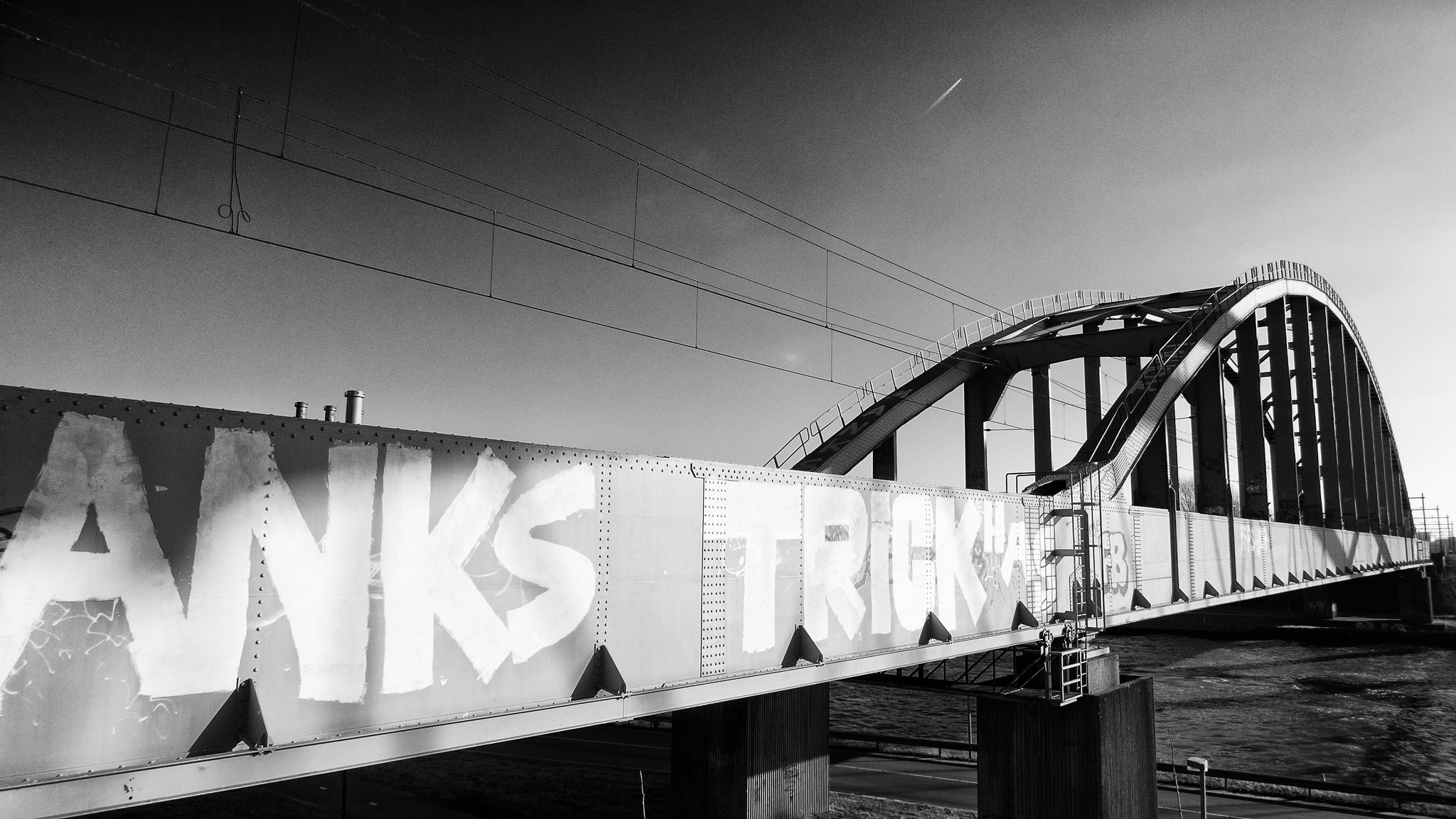
An image is as wide as the text. On wide screens the caption is in the margin, just like a note, aligned with the bottom of the photo.
Wide
In a bleed the image runs into the margin. The caption then goes below it.
Enlarge
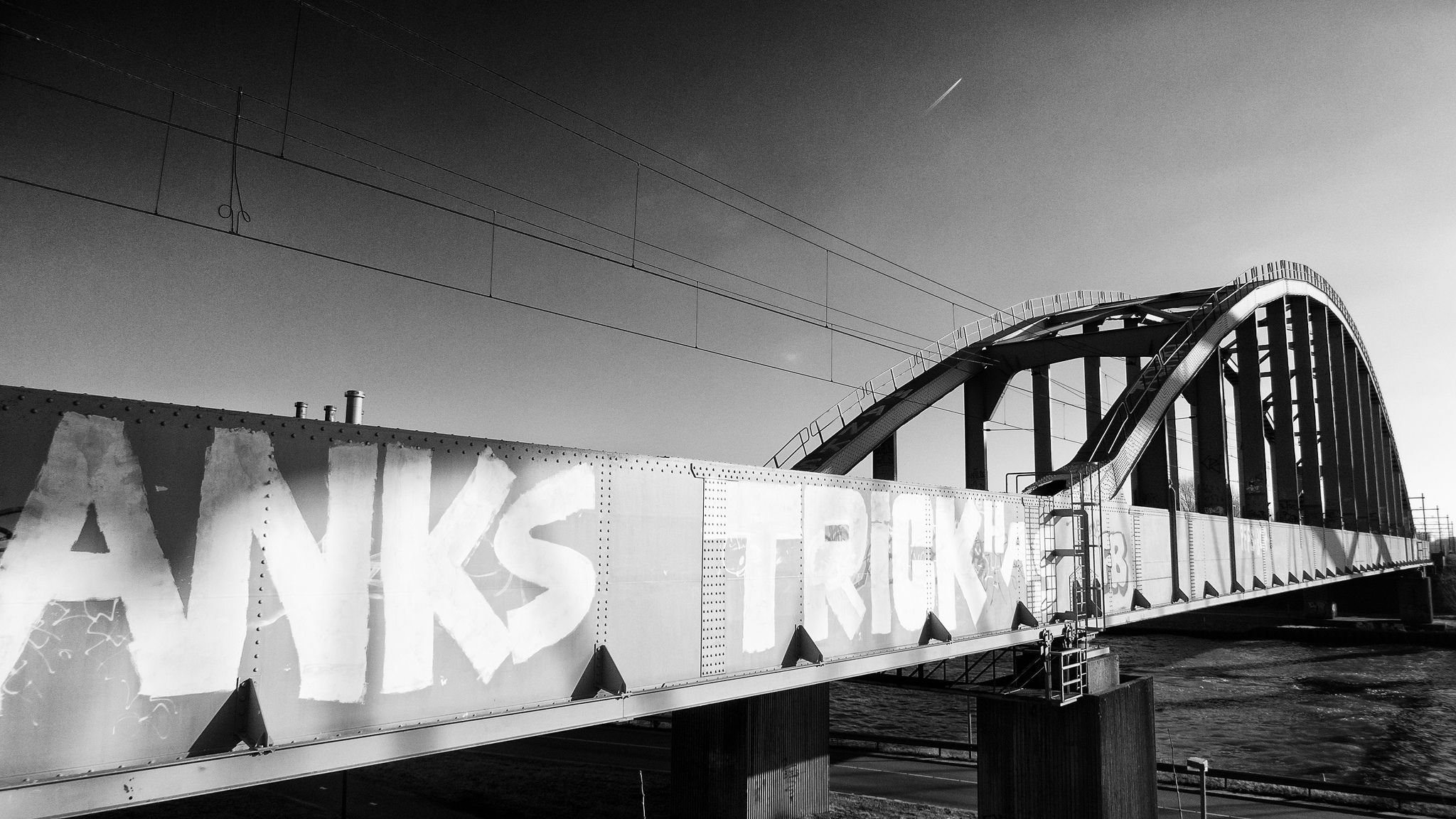
Put images in a figure with the class lightbox and they can be viewed larger: click or tap an image and it opens full screen, on the paper colour. One image is as wide as the text; two or three stand side by side at the same height, whatever their proportions. With more than one, you browse with the arrows, the arrow keys or by swiping. The title of an image becomes its caption in the large view.
<figure class="lightbox">

<figcaption>An optional caption.</figcaption>
</figure>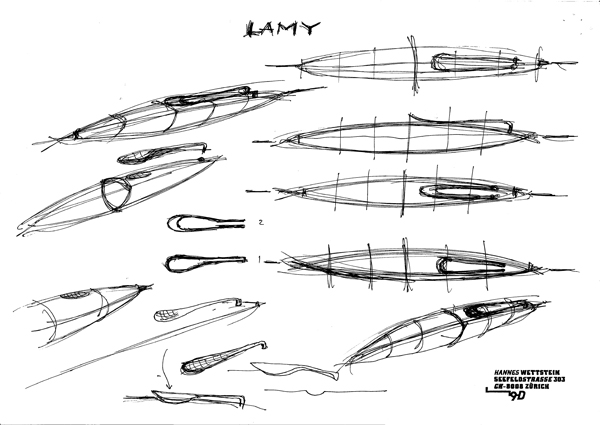
Tables
Tables are set in the sans-serif. A wide table sits in a bleed and scrolls sideways on smaller screens. On a phone every row becomes a small block, with the column name in front of it.
| Year | Name | Colour | Nib | Grip | Finish | Note |
|---|---|---|---|---|---|---|
| 2025 | Studio Arctic Silver | Matt silver, metallic | Steel | Rubber | Satin metallic | Special edition |
| 2024 | Studio Racing Green | Deep British green | Gold (14k) | Steel | High-gloss metallic | Special edition |
| 2023 | Studio Lilac | Soft lavender, metallic | Steel | Rubber | Satin anodised | Special edition |
| 2022 | Studio Black Forest | Dark green, almost black | Gold (14k) | Steel | High-gloss lacquer | Regular colour (first a special edition) |
| 2021 | Studio Glacier | Cool ice blue | Steel | Rubber | Satin anodised | Special edition |
| 2020 | Studio Rose | Warm rose gold | Steel | Steel | Matt metallic | Special edition |
| 2019 | Studio Aquamarine | Deep turquoise | Steel | Steel | Anodised | Special edition |
| 2018 | Studio Olive | Matt olive green | Steel | Rubber | Matt lacquer | Special edition |
| 2017 | Studio Imperial Blue | Deep metallic blue | Steel | Rubber | High-gloss lacquer | Later part of the regular range |
| 2016 | Studio LX All Black | Matt black | Steel (black coated) | Rubber | Matt lacquer | Special monochrome edition |
Margin line, notes and menu
Margin line
To the left of the text runs a line that fills up as you read, with a tick for every h2 and h3, at the height where that chapter is. Move your mouse to the left edge and the titles appear. It also works with Tab, and on a tablet you tap the margin line. On a phone the contents are in the menu and a green bar runs under the header.
Notes
You simply write footnotes in Markdown. From 1120 pixels wide they are in the right margin, on the same baseline as their number. Point at the number or the note and they light up together. On narrower screens the note appears in a small window when you point at the number, and all notes are at the bottom.
Header
The header is semi-transparent and blurs what is underneath it, so that the text slides underneath it, blurred. It disappears when you scroll down and comes back as soon as you scroll up.
Menu button
Three lines that turn into a cross when the menu opens. The menu slides in from the left, the items come in shortly after each other.
Components
Topics
At the top of a piece, above the title. Small and calm, in the sans-serif.
Article header
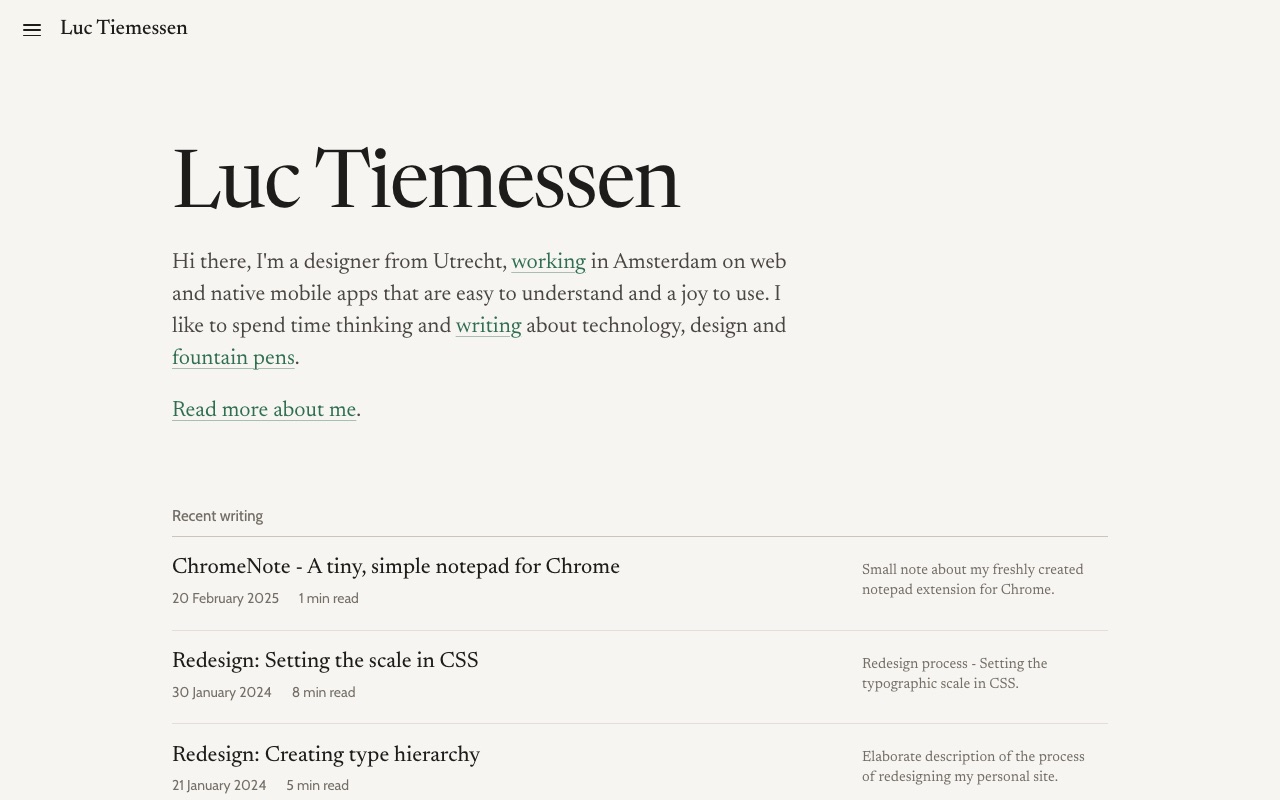
Topics, title and a line with author, date and reading time. The header of this page is an example of it.
Overview
On the overview page the newest post is shown large at the top. Below it follows the archive per year; the description of each post is in the margin, just like a note, and lights up when you point at the line.
Redesign 2026: notes in the margin
How this site went from big and bold to a warm and calm design.
2025
Small note about my freshly created notepad extension for Chrome.
Redesign process - Setting the typographic scale in CSS.
Below a piece
Links to the previous and the next piece, below a thin line.
Preview
A block in which a piece of HTML, CSS and JavaScript renders, shielded from the rest of the page: the styles inside and outside the preview don’t affect each other, but tokens such as var(--accent) do work. Write it straight into Markdown, without blank lines. In a script, use root instead of document. Give it a label of its own with data-label.
Optionally, add data-replay for a Replay button next to the label. It rebuilds the preview from its original content and runs its scripts again, so animations play again and the example starts over. Click the button below a few times, then press Replay.
<div class="preview">
<template shadowrootmode="open">
<style>
  p { color: var(--accent); }
</style>
<p>Hello from inside the preview.</p>
<script>
  root.querySelector('p').textContent += ' JavaScript works too.';
</script>
</template>
</div>Clicked 0 times.
Footnotes
Readability: the Optimal Line Length, Baymard Institute. ↩
The Elements of Typographic Style Applied to the Web, after Robert Bringhurst. ↩
Accessibility for Teams, U.S. General Services Administration. ↩
A note that would fall next to a wide block automatically moves down to below that block. ↩